Getting started
This page takes you from nothing to a subscription that delivers a notification. It runs a local Scorpio broker and a small notification receiver with Docker Compose, then runs Aquila from its container image against them. Every address on this page is on your own machine.
What you need
- Docker with Compose.
gitandcurl.- A current version of Chrome, Edge, Firefox or Safari.
1. Start a broker and a receiver
The Aquila repository has a Compose file that starts Scorpio, its database, and a receiver that records every notification sent to it:
git clone https://github.com/vela-tools/aquila.git
cd aquila/docker
docker compose up -d
Scorpio takes a minute to start. It is ready when this request prints 200:
curl -s -o /dev/null -w '%{http_code}\n' http://localhost:9090/ngsi-ld/v1/types
The receiver's page is at http://localhost:8099. It lists the notifications it has received and refreshes every five seconds.
The broker is published on port 9090 and the receiver on 8099. If either port is already in use on your machine, pick another one with SCORPIO_PORT (broker) or RECEIVER_PORT (receiver), for example SCORPIO_PORT=9091 docker compose up -d. Then use that port wherever this page says 9090 or 8099.
2. Create an entity
Give the broker something to watch, a water quality reading with a pH of 7.2:
curl -i -X POST http://localhost:9090/ngsi-ld/v1/entities \
  -H 'Content-Type: application/json' \
  -d '{"id":"urn:ngsi-ld:WaterQualityObserved:demo","type":"WaterQualityObserved","pH":{"type":"Property","value":7.2}}'
The broker answers 201 Created.
3. Run Aquila
Run the image, pointed at the broker:
docker run --rm -p 2361:2361 \
  -e AQUILA_BROKER_URL=http://localhost:9090/ngsi-ld/v1 \
  -e AQUILA_BROKER_NAME="Local Scorpio" \
  ghcr.io/vela-tools/aquila:latest
Open http://localhost:2361. The header shows "Local Scorpio" as the selected broker, with its connection status. The broker URL is the address your browser uses to reach the broker, since Aquila runs in the browser. The Compose file already allows the origin http://localhost:2361 in Scorpio's CORS settings.
The Entity explorer tab now lists the type WaterQualityObserved, the entity, and its pH attribute.
4. Create a subscription
On the Subscriptions tab, press Add subscription and fill in:
| Field | Value |
|---|---|
| Name | pH too high |
| Notification URI | http://receiver:8099/notify/ph |
| Entity types | WaterQualityObserved |
| Conditions | pH, >, 8.5 |
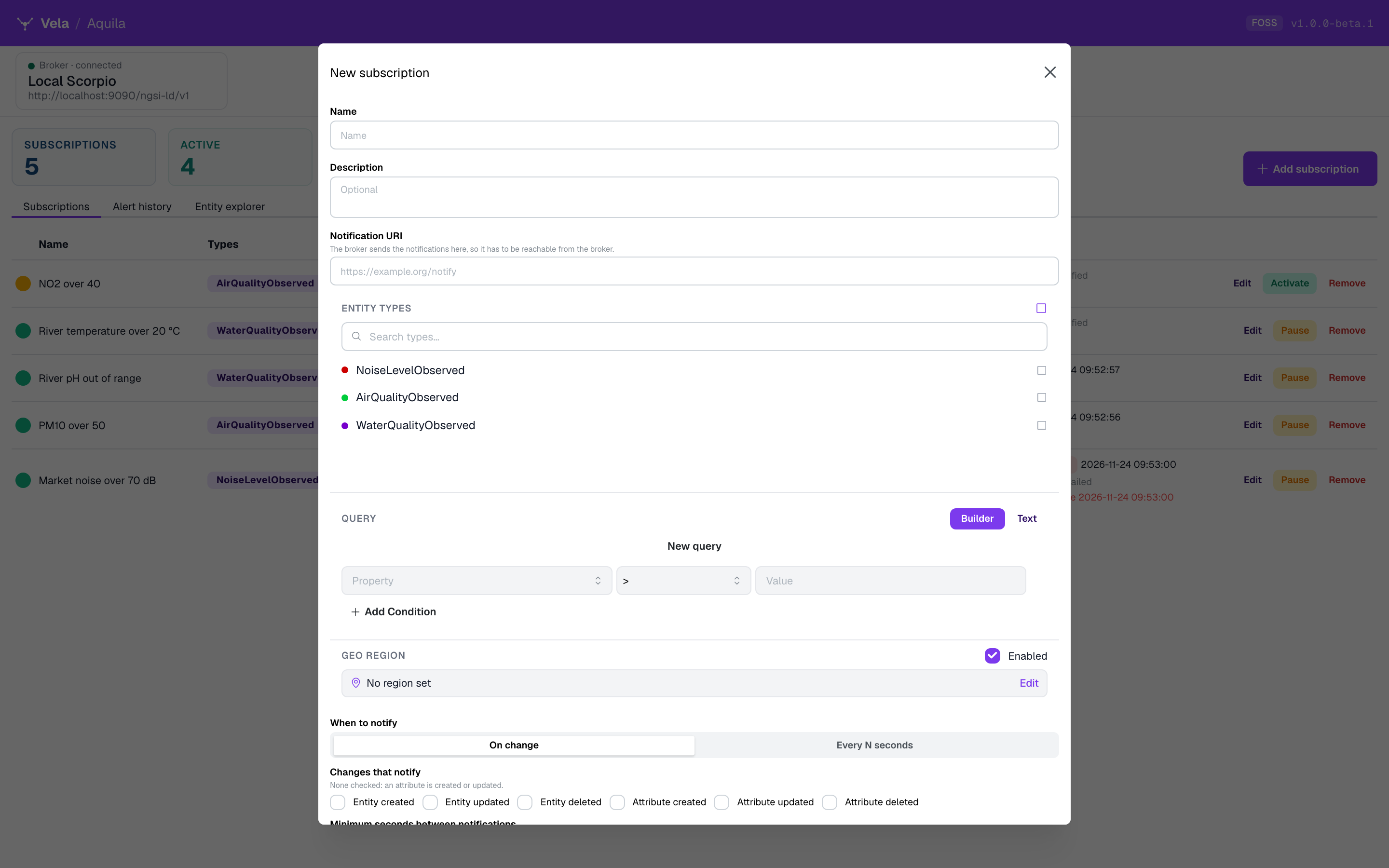
Leave everything else as it is and press Create subscription. The subscription appears in the list as active.
The notification URI uses the name receiver, not localhost. The broker sends the notification from inside the Compose network, where localhost is the broker itself and the receiver is reachable by its service name. The last part of the path, ph, is a tag the receiver shows next to each notification.
You can also start from the data: pick the pH attribute in the entity explorer, and the editor opens with the type and the attribute already filled in.
5. Trigger it
Raise the pH above the threshold:
curl -i -X PATCH http://localhost:9090/ngsi-ld/v1/entities/urn:ngsi-ld:WaterQualityObserved:demo/attrs \
  -H 'Content-Type: application/json' \
  -d '{"pH":{"type":"Property","value":9.1}}'
The broker answers 204 No Content, and within a few seconds the receiver's page shows a notification tagged ph, carrying the entity with its new pH. In Aquila, the subscription's Delivery column shows when the broker last notified, and one notification sent.
Set the pH back to 7.0 with the same request. Nothing new arrives: the condition is checked against the entity after the change, and a change that makes an entity stop matching sends nothing.
6. See a failing delivery
Edit the subscription and change its notification URI to http://receiver:8099/notify/ph?status=500. The receiver now answers every notification with an error. Raise the pH again, and the Delivery column marks the subscription as Failing, with the time of the last failure.
Clean up
Stop Aquila with Ctrl+C. Stop the broker and the receiver, and delete their data, from the docker directory:
docker compose down -v
Next
- Point Aquila at your own broker: Deployment covers the image, its configuration, and the CORS and network settings the broker needs.
- The subscription editor explains every field, and how the conditions, the watched attributes and the triggers decide when a notification is sent.
- Known limitations lists what this beta does not do yet.